Shopify bugs are not always dramatic. Many start as small issues: a variant selector that fails on mobile, a cart drawer that does not update, a discount message that displays incorrectly, a tracking event that stops firing or a product page section that breaks after an app update. The problem is that small bugs can quietly damage trust, reduce conversions and create support problems before the team notices.
A good Shopify bug fix process starts with diagnosis. Before changing code or installing another app, you need to understand where the issue happens, what changed recently and whether the problem affects revenue-critical journeys. This checklist is designed to help store owners identify practical issues before they become bigger technical or commercial problems.
Why Small Shopify Bugs Matter
Ecommerce customers rarely report every issue they experience. If a button does not work, a page loads incorrectly or the cart behaves strangely, many visitors simply leave. That means a bug can affect sales without generating obvious complaints. A store may look fine during a quick desktop check while mobile customers are struggling with a broken interaction.
Bugs also create confusion inside the business. A drop in conversion might be blamed on ads, pricing or product demand when the real issue is technical. A tracking error might make campaign performance look worse than it is. A theme conflict might make product pages feel slow or unreliable. Fixing the right issue requires careful testing rather than guesswork.
Check Theme and Layout Issues
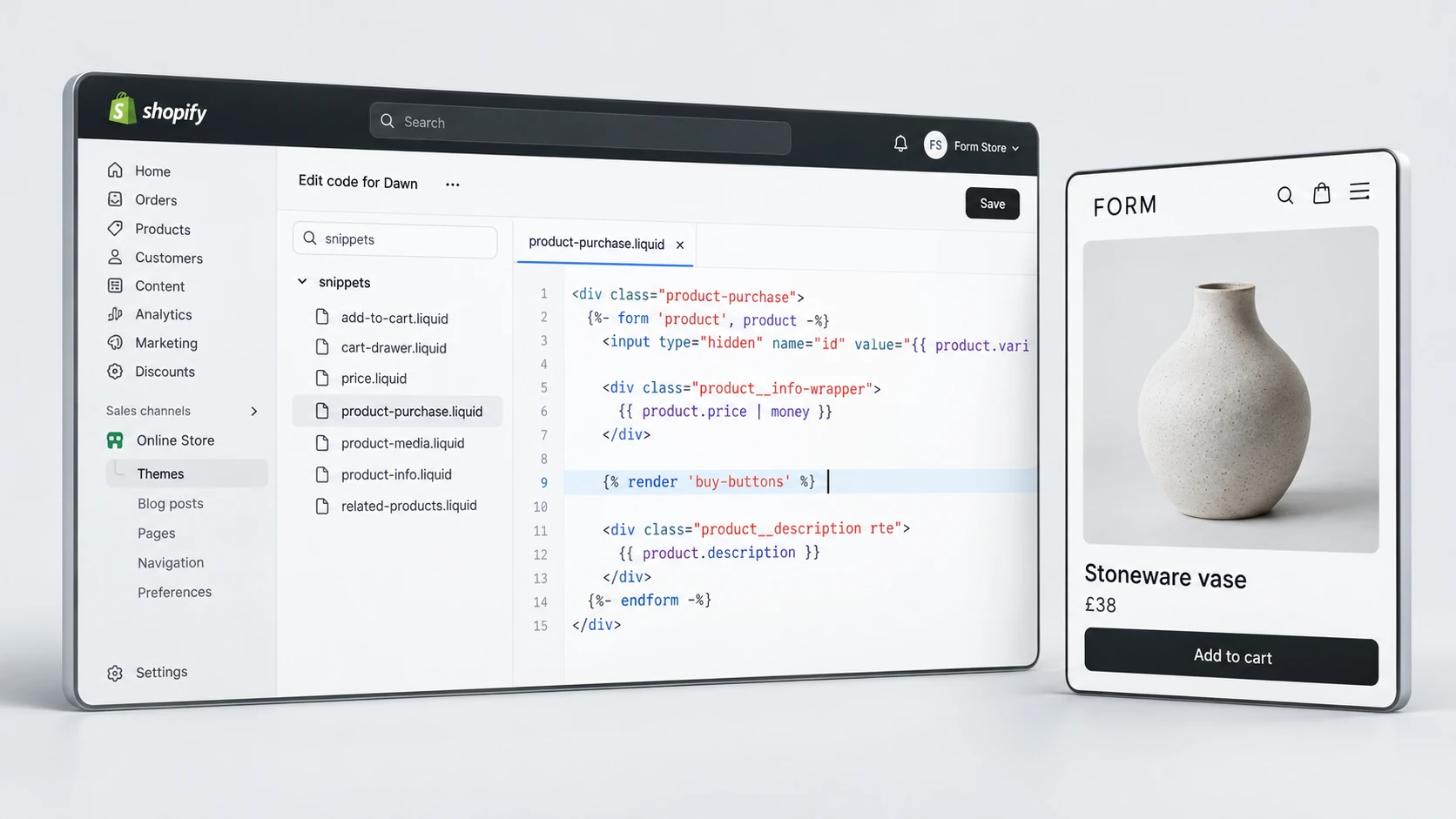
Shopify theme bugs often appear after theme edits, app installs, code snippets, section changes or updates. Common symptoms include broken spacing, overlapping elements, hidden buttons, sections that do not save properly, image blocks that crop badly or homepage modules that behave differently across devices.
Start by checking your most important templates: homepage, collection pages, product pages, cart and key landing pages. Review them on desktop and mobile. If the issue started after a specific update, note the timing and the pages affected. This helps reduce the fix from “something is broken” to a clear technical investigation.
- Check whether the bug appears on one template or across the full store.
- Compare desktop, tablet and mobile layouts separately.
- Review recent theme edits, app installs and custom code changes.
- Look for sections that do not save, duplicate or display correctly.
- Test important buttons, menus, filters, sliders and accordions.
Review Product Page Functionality
Product pages are one of the most important places to look for bugs because customers are close to a buying decision. Even small issues can reduce confidence. Variant selectors, subscription widgets, size charts, review blocks, image galleries, sticky add-to-cart bars and dynamic payment buttons should all work consistently.
Test multiple product types, not only one best-seller. A bug may appear only on products with variants, subscription options, sale pricing, bundles or custom metafields. Product pages with more complex functionality are more likely to expose theme or app conflicts.
Product Page Bug Checklist
If product-page issues are recurring, RexCode’s Shopify bug fixes service can help investigate the theme, app behaviour and customer journey before making targeted fixes.
Test Cart and Checkout Paths
Cart issues can be more damaging than design bugs because they interrupt buying intent. Customers who add products to cart have already shown interest. If the cart drawer fails to update, discounts behave unexpectedly, delivery messaging is unclear or checkout buttons do not respond, the store can lose revenue at the point where confidence matters most.
Test the cart from different journeys: product page add-to-cart, quick add from collections, bundle offers, discount links, free shipping thresholds and mobile sticky buttons. Shopify checkout itself is controlled by Shopify, but the journey into checkout often depends on your theme, scripts and apps.
- Add, remove and update quantities from the cart drawer and cart page.
- Check whether discounts, gift cards and automatic offers display correctly.
- Test free shipping messages and cart threshold logic.
- Confirm checkout buttons work on mobile and desktop.
- Review whether upsells or cross-sells block the checkout path.
Find App Conflicts
App conflicts are common on growing Shopify stores. A store might use separate tools for reviews, subscriptions, bundles, upsells, analytics, email capture, loyalty, returns and chat. Each tool may add scripts or modify the theme. Over time, apps can conflict with each other or leave old code behind after removal.
When a bug appears, review what changed recently. Was an app installed, updated, removed or reconfigured? Did a new script get added for tracking or marketing? Did the theme receive a custom edit? The timeline often points towards the source of the issue.
App Conflict Checklist
Some app issues also affect performance. If your store has become slower after several app additions, a focused Shopify speed optimisation review may help identify unnecessary scripts and safer loading behaviour.
Test Mobile and Browser Behaviour
Many Shopify bugs are device-specific. A page may work in desktop Chrome but fail on mobile Safari. A sticky button may cover product details on smaller screens. A menu may open but not close. A cart drawer may look fine at one screen width and broken at another.
Do not rely only on a desktop preview. Test real mobile devices where possible, especially for product pages, collection filters, navigation, cart, checkout entry and forms. If a bug affects mobile, it can be commercially serious because many ecommerce customers browse and buy from phones.
- Test iPhone, Android, Safari and Chrome where possible.
- Check sticky bars, pop-ups and chat widgets on small screens.
- Use touch interactions rather than only mouse clicks.
- Review forms, menus, filters, accordions and cart drawers.
- Record the exact device, browser and steps needed to reproduce the issue.
Protect Tracking and SEO
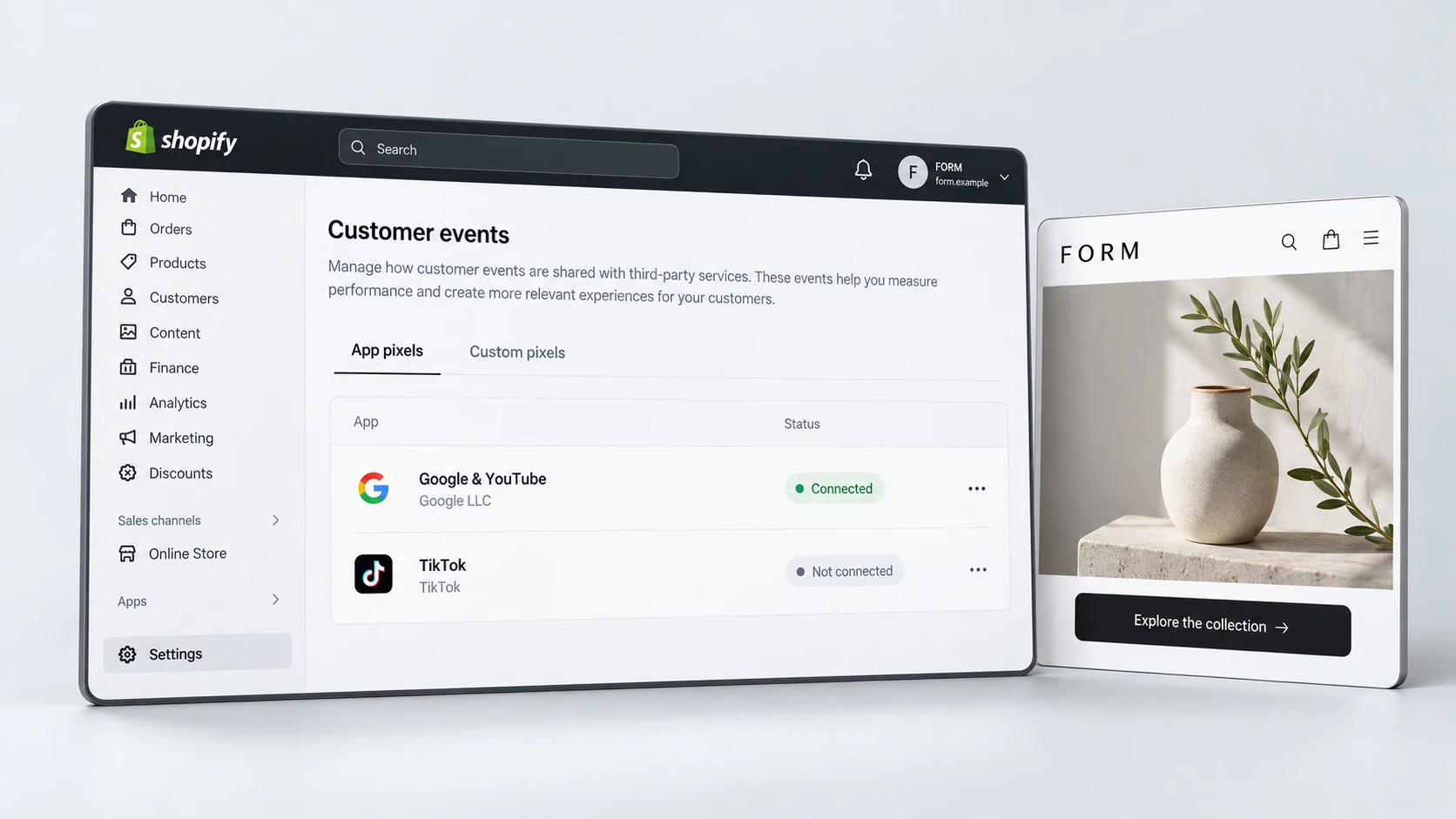
Not all Shopify bugs are visible to customers. Tracking scripts, analytics events, pixels, consent tools, schema markup, canonical tags and metadata can break quietly. These issues may not stop customers from buying, but they can damage reporting, SEO clarity and campaign decision-making.
Check tracking after theme changes, app updates, checkout changes and new marketing scripts. Also review whether SEO-critical elements still appear correctly on key pages. A bug that removes structured data, duplicates metadata or changes canonical tags can create technical SEO problems over time.
Hidden Bug Checklist
Final Shopify Bug Fix Checklist
Shopify bug fixes should be handled carefully. A rushed fix can solve one issue and create another. Before changing code, document the problem, reproduce it, identify the affected templates and confirm whether the issue is commercial, technical or cosmetic.
Shopify Bug Fix Checklist
The best bug fixes make the store more reliable without adding unnecessary complexity. When issues are investigated properly, you protect the customer journey, improve team confidence and reduce the chance of the same problems returning later.
Frequently Asked Questions
What are common Shopify bugs?
Common issues include broken theme sections, app conflicts, variant selector problems, cart drawer errors, mobile layout issues, discount display problems, slow scripts, tracking errors and forms that fail to submit correctly.
How do I know if a Shopify bug is caused by an app?
Review whether the issue started after an app install, update or removal. Check if the problem appears only on templates where that app loads, and look for old app code left inside the theme.
Should I fix Shopify bugs myself?
Simple content or settings issues may be safe to fix internally. Theme code, cart behaviour, tracking, app conflicts and checkout-related issues should be handled carefully because a small change can affect revenue-critical journeys.
Can Shopify bugs affect sales?
Yes. Bugs can stop customers from choosing variants, adding products to cart, applying discounts, trusting the page or reaching checkout. They can also create inaccurate analytics that hides the real problem.